
Managing access to shared files and folders
- Reading
- 3 mins
- Categories
- Proton Drive
- Using Proton Drive
Note: Editors can now manage access and share files with others as this feature rolls out on the web app. It will be available on mobile soon.
When sharing files and folders with Proton Drive, you can adjust access whenever needed, even after sharing them.
Web app
Click the Manage share 👥 button next to the shared item.

Depending on how you shared the file or folder, Email invite and Public link permissions are managed independently, so you can set different access levels for each.
Email invites
If you have shared files via email, you will see the details of who currently has access, including name, email address, and role.
To manage access for each recipient, click the arrow ⌄ button next to their email address.

From this menu, you can:
- Change permissions: Switch between Viewer and Editor permissions as needed. Anyone invited as an Editor via email can also share the file or folder with others, change permissions for existing recipients, and remove access. Editors cannot modify or remove access for the owner. To prevent Editors from managing access, click the Settings ⚙️ icon and toggle off Access.
- Click Remove access to revoke Viewer or Editor access for recipients.
- Select Copy invite link to share the email invite with the recipient directly.
- Select Resend invite to automatically send the access invitation again to the recipient, ensuring they receive the link to the shared file or folder if they missed the initial email.
- Click Settings ⚙ to manage share settings.
Public link
You can also share files using secure public links. To enable this for a file or folder, toggle on Public link. This generates a secure link you can share with anyone, including people without a Proton Account. Anyone with the link can access your file or folder, so share it carefully.

When sharing using a public link, you can:
- Set permissions: Click the arrow ⌄ button next to Anyone on the Internet with the link and select between Viewer (can only view the file) and Editor (can view and edit the file). By default, Editors can manage access on your behalf and share the file with others (this can be switched off in link settings).
- Click Set password or expiration date to add an extra layer of security by protecting the link with a password or setting an expiration date after which the link will no longer work.

- Click Settings ⚙ to manage share settings.
Managing share settings
You can:
- Toggle off Access to prevent Editors from changing permissions and sharing the selected file or folders with others (on by default).
- Click Stop sharing to delete the public link and remove access for everyone, including people invited by email.

Mobile
Note: Editors can now manage access and share files with others as this feature rolls out on the web app. It will be available on mobile soon.
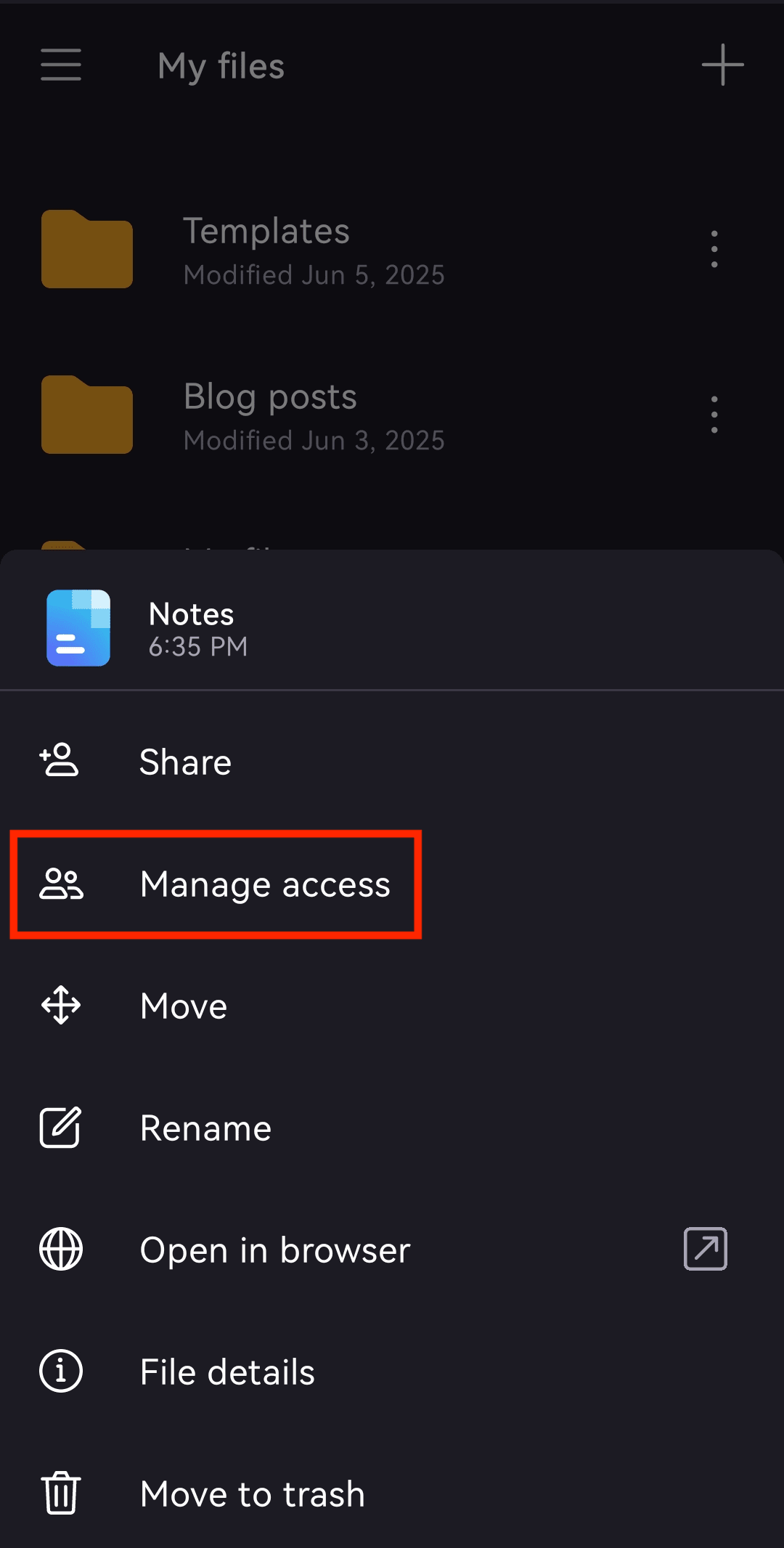
- Tap the vertical ellipsis ⋮ icon next to a file or folder.

- Select Manage access.
Public link
- To create a public link and share it with anyone, toggle on Share with anyone.

- Tap Anyone with this link and choose between Viewer and Editor.

After creating a public link, you can:
- Tap Copy link to copy it and share it with anyone.
- Go to Link settings to add a password or expiration date.

Email invites
To invite only specific people, tap the Share icon in the top-right corner.

Enter recipient addresses and select a role between Viewer and Editor.

Remove access for everyone
To remove access for everyone, tap Stop sharing.
