
How to create a Proton Mail shortcut on your desktop
- Reading
- 2 mins
- Category
- Proton Mail settings
If you use Chrome or Brave browser, you can access Proton Mail directly from your desktop. By creating a shortcut on your desktop, you can quickly open Proton Mail in “window mode” — a browser window for your mailbox that looks much like a desktop app.
We also have a dedicated Mail desktop app.
This article describes how to create a Proton Mail desktop shortcut. These instructions apply to both Windows and macOS.
Chrome/Brave browser
First, log in to your account at mail.proton.me(new window).
Once you are logged in, go to ⋮ Cast, Save, and Share → Create Shortcut.

Next, enter a name for your shortcut and choose the option to Open as window.

Once you create the shortcut, you can pin it in your Taskbar (Windows), Dock (macOS and Linux), or Panel (Linux) for easier access.
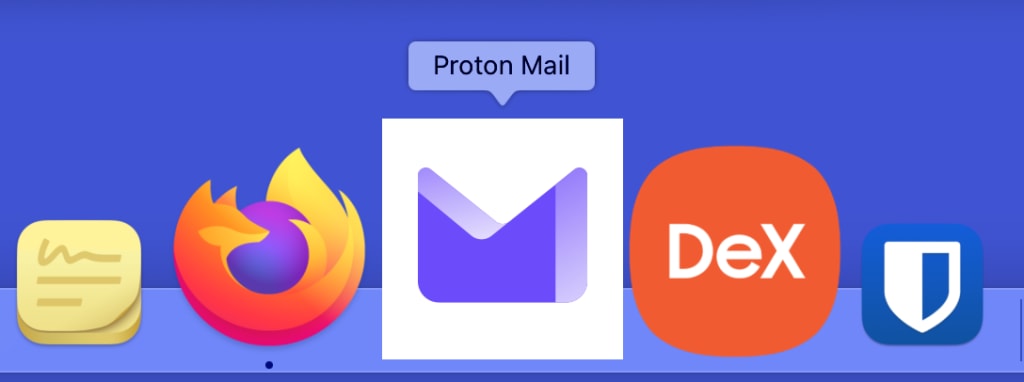
The shortcut will allow you to access your account in windowed mode with a single click.
Firefox
First, log in to your account at mail.proton.me(new window).
In Firefox, click the web apps button  that appears in the address bar.

Firefox will install the site, and it will appear in your Windows taskbar.
Thanks to the persistent SSO (single sign-on) for the Proton Mail beta web app, your session remains active even after closing the window unless you explicitly log out of your account.